1. Creation



Intro+Loop with Wwise
2. Integration
À propos
Description
A piece of music intended to loop, consisting of two files:
- Intro: a piece of music intended to play only once, serving as an introduction to the following music.
- Loop: a piece of music that loops for an indefinite period of time.
E.g.: A piece of music with a catchy theme intended to emphasize the beginning of the music for a level. However, to prevent the repetition of the theme from becoming too redundant, this section will only be played once and will then transition into another piece of music. This second piece could contain fewer catchy melodic elements and play in a loop (or through resequencing). This way, the music remains in the background until the player completes the level.
Particularities
- Allows the beginning of the music to be highlighted in a distinctive way.
- Allows for a strong melodic theme without becoming repetitive for the player.
- Unlike opening/closing Stingers, this technique includes a complete introductory section (rather than simply a file layered over another file as an introduction).
Considerations
- The audio files must begin with a Pre-Entry and end with a Post-Exit in order to transition through overlapping.
- The audio files must be able to transition harmonically.
Integration in Wwise
Below are the steps to integrate two audio files into Wwise to create an intro + loop.
If you want to integrate your music into a new Wwise project, you must first create a Wwise project and a Work Unit. To do so, follow the steps on the Create a Wwise Project page.
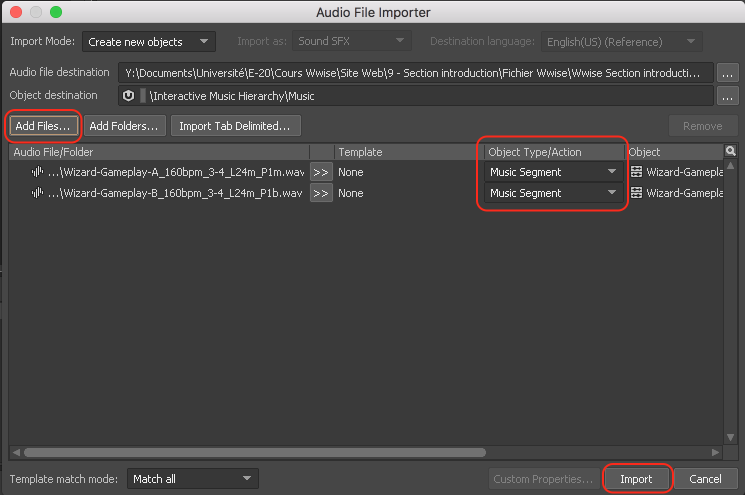
1 – Import the audio files
- In the Project Explorer / Interactive Music Hierarchy, select your Work Unit and right-click.
- Select Import Audio File.
- In the Audio Importer window, click Add Files.
- Navigate to the desired audio files, select them, and click Open.
- Ensure that the Object Type/Action option is set to Music Segment.
- Click Import.
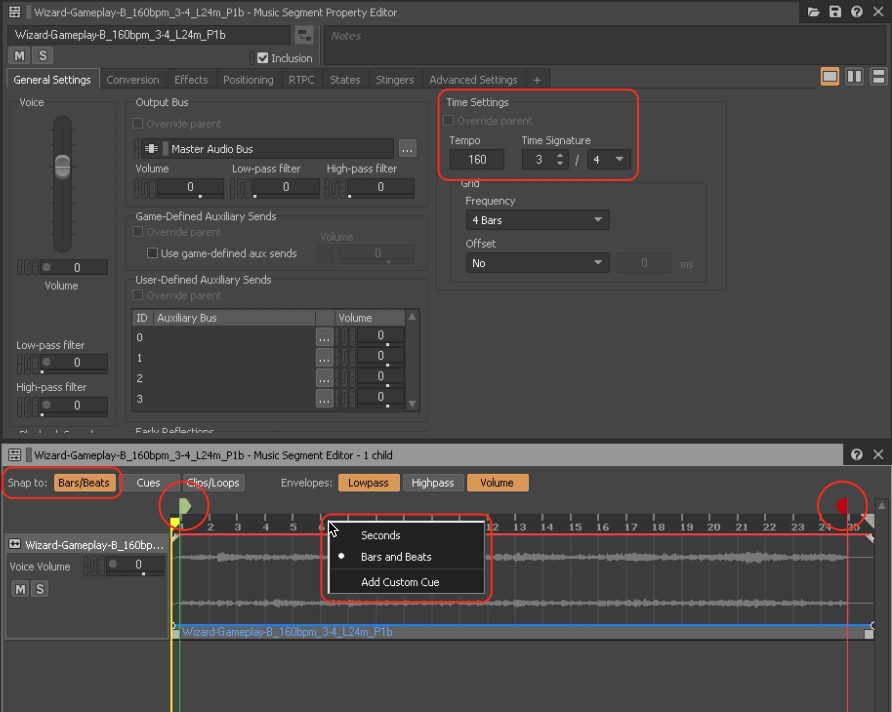
2 – Adjust the Time Settings options for the introduction music
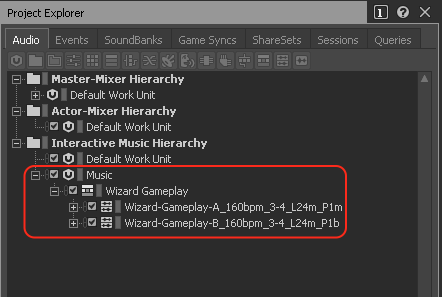
- In the Project Explorer, click the “+” to the left of the Work Unit to view the Music Segments.
- Select the first Music Segment.
- In the Music Segment Property Editor, adjust the Time Settings options (Tempo and Time Signature).
- In the Music Segment Editor:
- Set the Snap To option to Bars/Beats.
- Right-click on the Timeline and select the Bars and Beats option.
- Adjust the Pre-Entry Cue and the Post-Exit Cue.
3 – Integrate the music that follows the introduction
- If the music following the introduction is intended to play in a loop (as is the case in this example), repeat Step 2 with the corresponding audio file.
- If the music following the introduction involves resequencing, reorchestration, or another technique, follow the steps corresponding to the appropriate technique (see the Interactive Music submenu in the main menu).
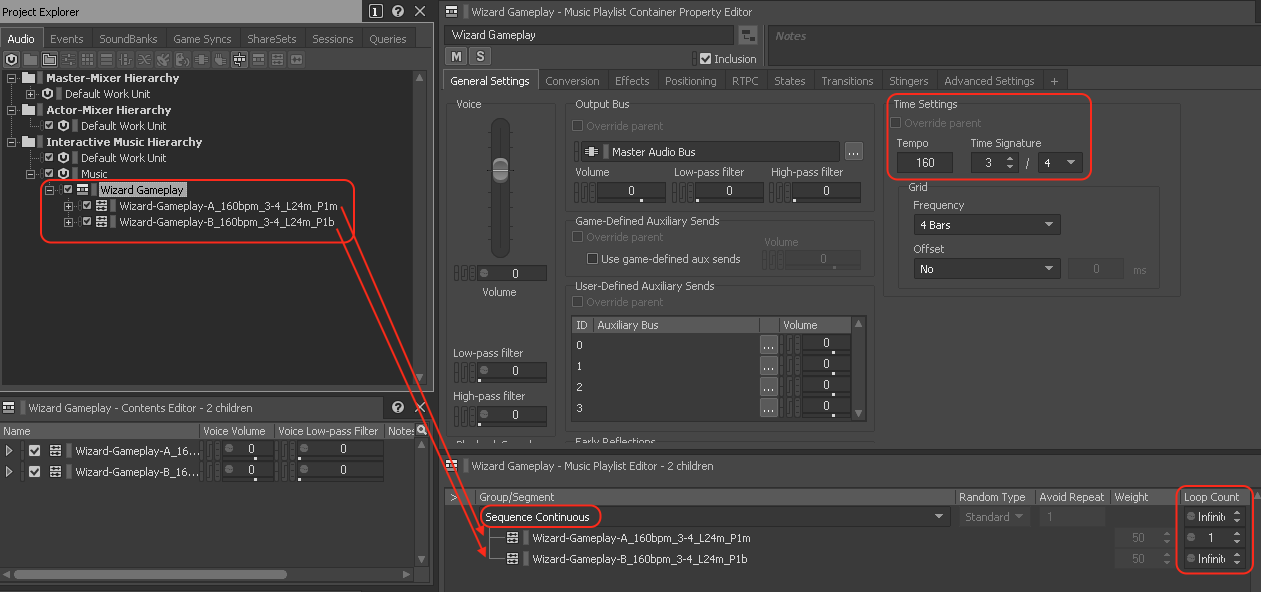
4 – Create a Music Playlist Container
- Select all the Music Segments, right-click, and choose New Parent > Music Playlist Container.
- Rename the Music Playlist Container appropriately.
5 – Adjust the Music Playlist Container options
- Ensure the Music Playlist Container is selected.
- In the Music Playlist Container Property Editor, adjust the Time Settings options (Tempo and Time Signature).
- Select all the Music Segments and drag and drop them into the Music Playlist Editor.
- In the Music Playlist Editor:
- Ensure the introduction Music Segment is above the Music Segment intended to play in a loop.
- Ensure the Sequence Continuous option is selected.
- Ensure the Loop Count of the introduction Music Segment is set to 1.
- Adjust the Loop Count of the Music Playlist Container and the looping Music Segment to Infinite.
- Adjust the Random Type, Avoid Repeat, and Weight options as needed.
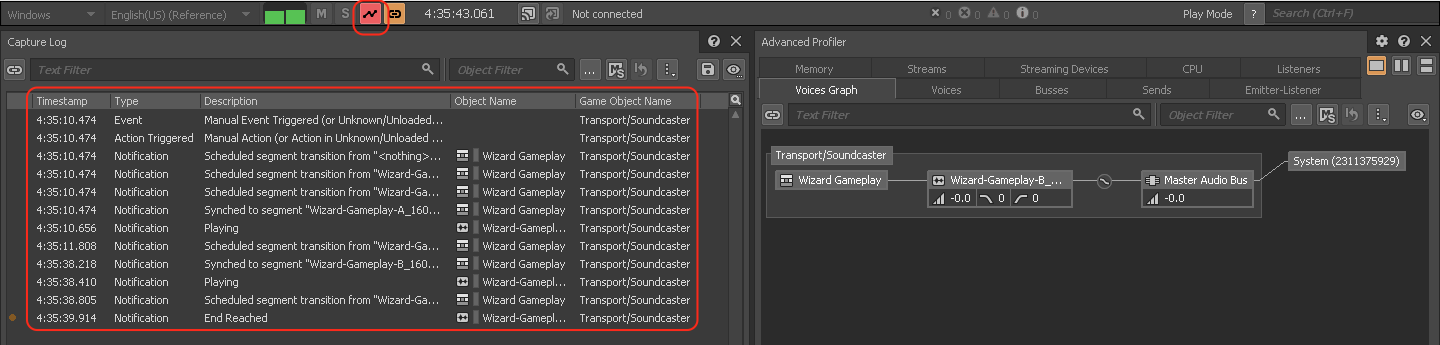
6 – Test the sequence
- In the toolbar (at the top of the Project Explorer), click Start Capture.
- In the Project Explorer, select the Music Playlist Container.
- In the Transport Control, click Play to play the Music Playlist Container.
- In the Layouts menu, choose the Profiler option.
- Observe the music’s behavior to ensure everything works as intended.