Soundcaster

Description

The Soundcaster is a view in Wwise used to test audio interactivity. Multiple sounds can be triggered simultaneously, and interactive changes can be applied in real time.


Wwise Integration
1 – Open the Soundcaster View
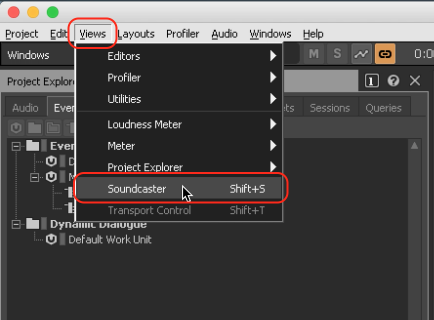
  • In the main menu, choose the Views option, then choose Soundcaster.

or

  • Use the shortcut “Shift” + “S”.
Soundcaster_1
2 – Create a new Soundcaster Session
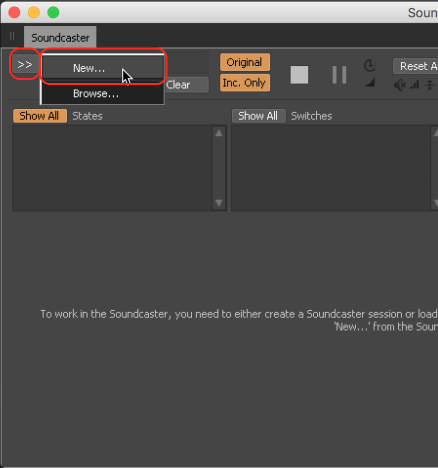
  • In the Soundcaster View, click on the selection button >>, then choose New.
  • Name the new Soundcaster Session (ex: Music testing) and click OK.
Soundcaster_2
3 – Populate the Soundcaster Session
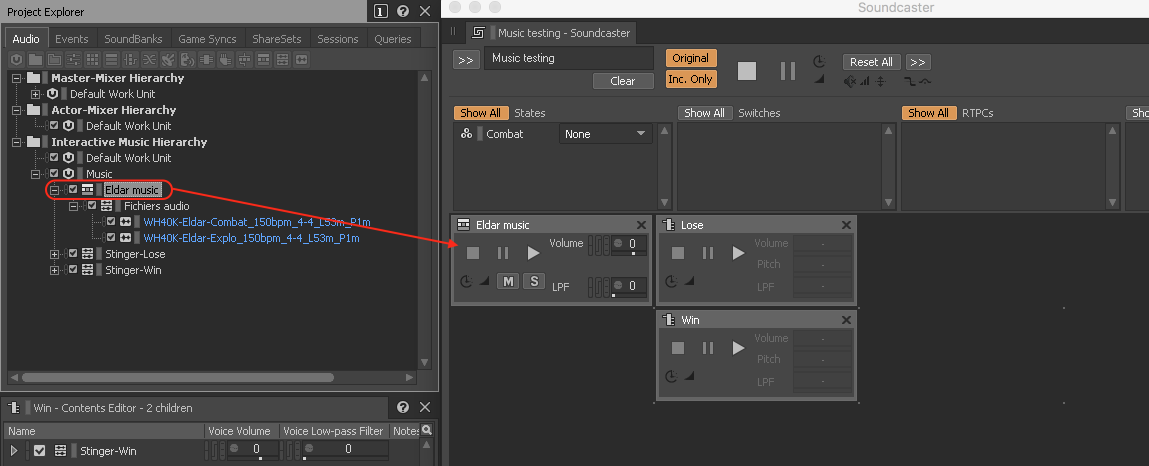
  • Drag and drop the desired Objects (ex: Music Segment, Playlist, Event, etc.) from the Project Explorer into the Soundcaster. (If the Soundcaster disappears when you select the Sound Object, place both windows next to each other rather than one on top of the other).
Soundcaster_3
4 – Test musical interactivity
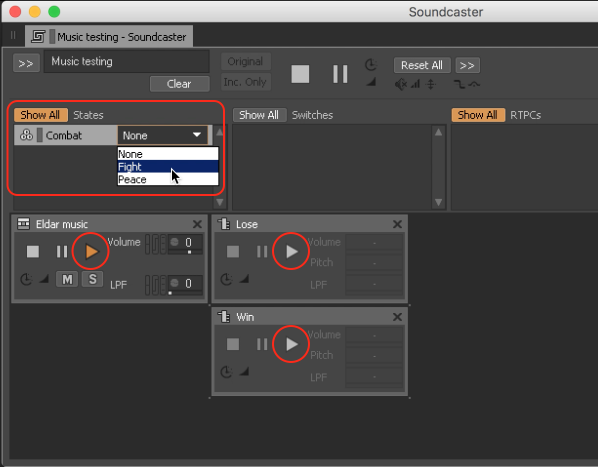
  • Activate the desired Objects in the Soundcaster in order to test their functionalities and combinations.
  • If applicable, you can change the Game Syncs directly in the Soundcaster View.
Soundcaster_4