1. Creation



Layered Loops
2. Integration
À propos
Description
A piece of music consisting of files of the same length, which are triggered simultaneously and play in a loop. The files are layered on top of one another with metric synchronization. The volume of each file evolves independently according to the interactivity of the game.
This technique is sometimes referred to by one of the following terms: layered music, stem-based music, music layers, multi-track music, music layering, etc.
Particularity
- Allows the music to be subtly modified to follow the action of the game, without creating interruptions (i.e.: without creating a stop-and-go effect).
Considerations
- All files must have the same length (to prevent phase shifting when they loop).
- All files must have the same tempo, the same meter, and the same harmonic progression.
Integration in Wwise
In the example below, the layered loop music consists of three audio files. The three audio files will be integrated as follows:
- An ambient track consisting of long sustained notes in the low register. This music will play continuously, regardless of whether the player is in combat or not.
- A rhythmic track consisting of percussion sustaining a pulse. This music will play during all battles (whether they are small or big).
- A tense track consisting of strings playing staccato ostinatos. This music will play only during big battles.
If you want to integrate your music into a new Wwise project, you must first create a Wwise project and a Work Unit.
To do so, follow the steps on the Create a Wwise Project page.
1 – Import the audio files
- In the Project Explorer / Interactive Music Hierarchy, select your Work Unit and right-click.
- Select Import Audio File.
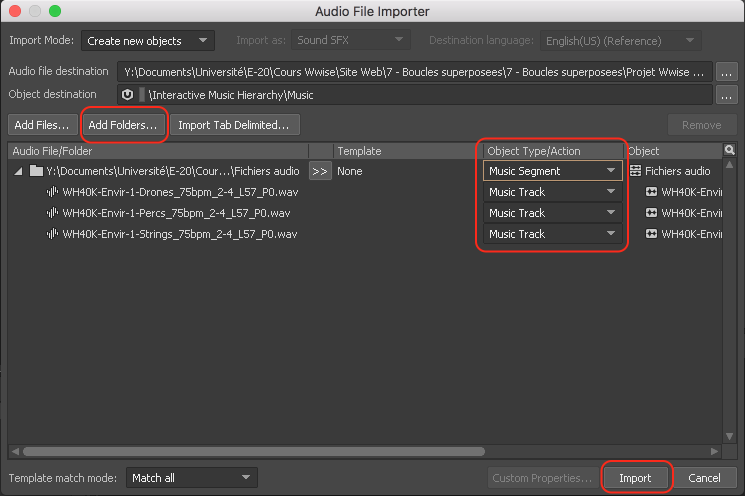
- In the Audio Importer window, click Add Folders.
- Navigate to the folder containing the desired audio files, select it, and click Open.
- In the Object Type/Action category, for the row corresponding to the folder, select the Music Segment option (instead of Virtual Folder).
- Click Import.
2 – Adjust the Time Settings options
- In the Project Explorer, click the “+” to the left of the Work Unit to view the Music Segments.
- Select the Music Segment.
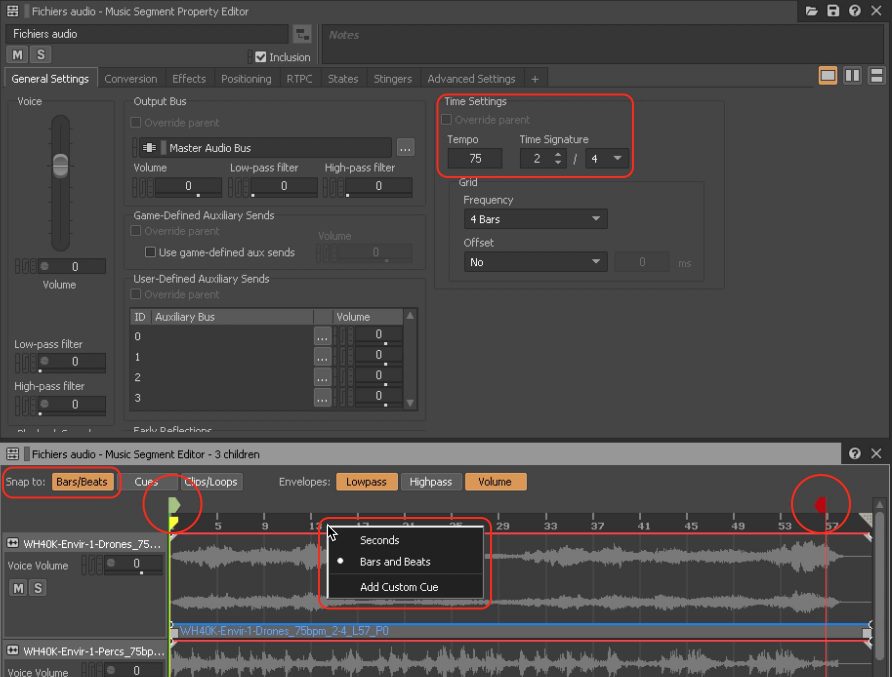
- In the Music Segment Property Editor, adjust the Time Settings options (Tempo and Time Signature).
- In the Music Segment Editor:
- Set the Snap To option to Bars/Beats.
- Right-click on the Timeline and select the Bars and Beats option.
- Adjust the Pre-Entry Cue and the Post-Exit Cue.
3 – Create a Music Playlist Container
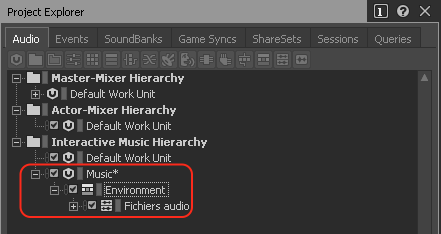
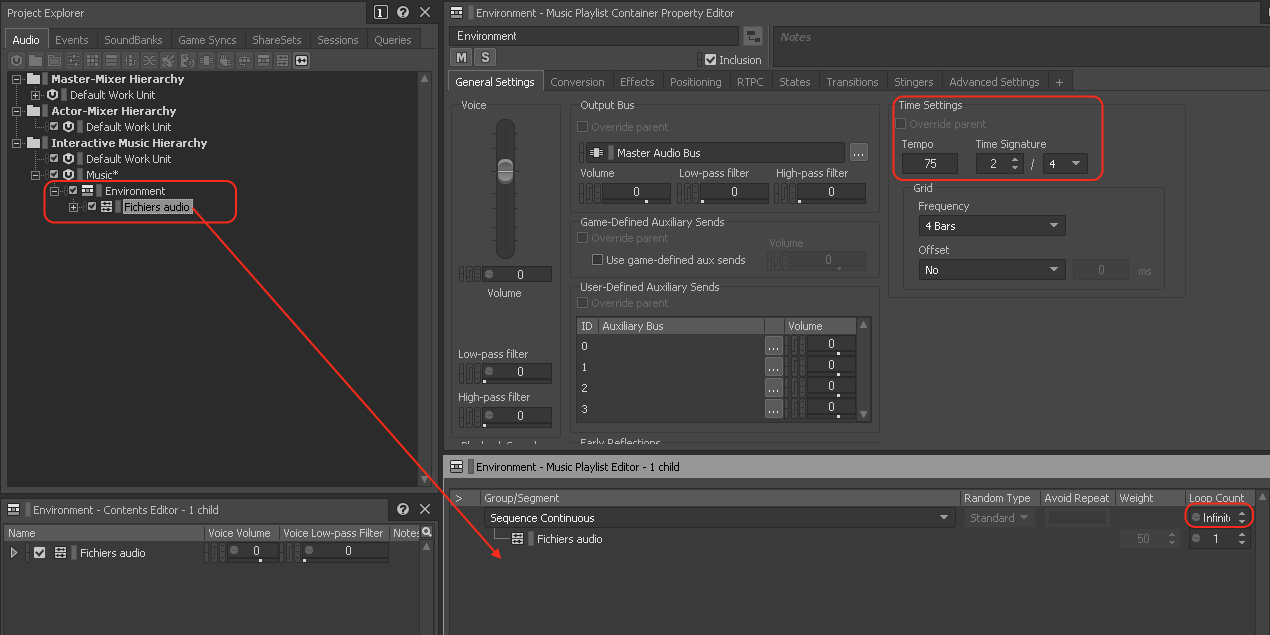
- In the Project Explorer, right-click on the Music Segment and choose New Parent > Music Playlist Container.
- Rename the Music Playlist Container appropriately.
4 – Adjust the Music Playlist Container options
- Ensure the Music Playlist Container is selected.
- In the Music Playlist Container Property Editor, adjust the Time Settings options (Tempo and Time Signature).
- Select the Music Segment and drag and drop it into the Music Playlist Editor.
- In the Music Playlist Editor, adjust the Loop Count of the Music Playlist Container to Infinite.
5 – Create States
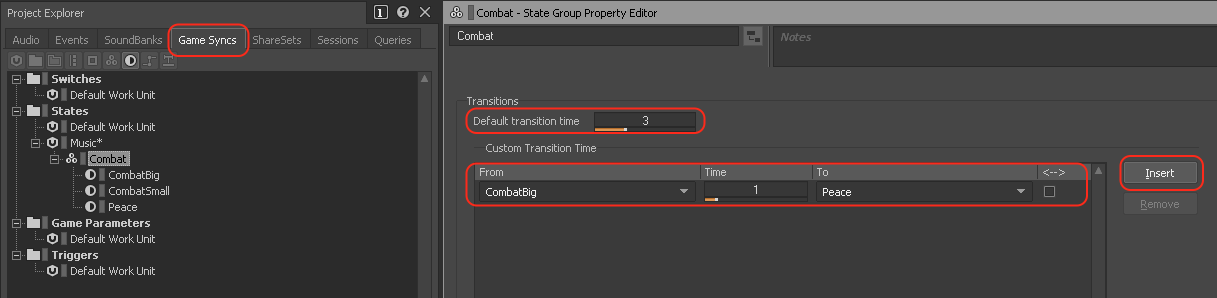
- In the Project Explorer, select the Game Syncs tab.
- In the States folder, if your Work Unit has not been created yet, choose New Child > Work Unit.
- Name the new Work Unit appropriately, and click OK.
- Right-click on the new Work Unit and select New Child / State Group.
- Name the new State Group “Combat”.
- In your State Group, create three new States and name them as follows:
- Peace
- CombatSmall
- CombatBig

6 – Adjust the options for the ambient Music Track
- In the Project Explorer, select the Audio tab.
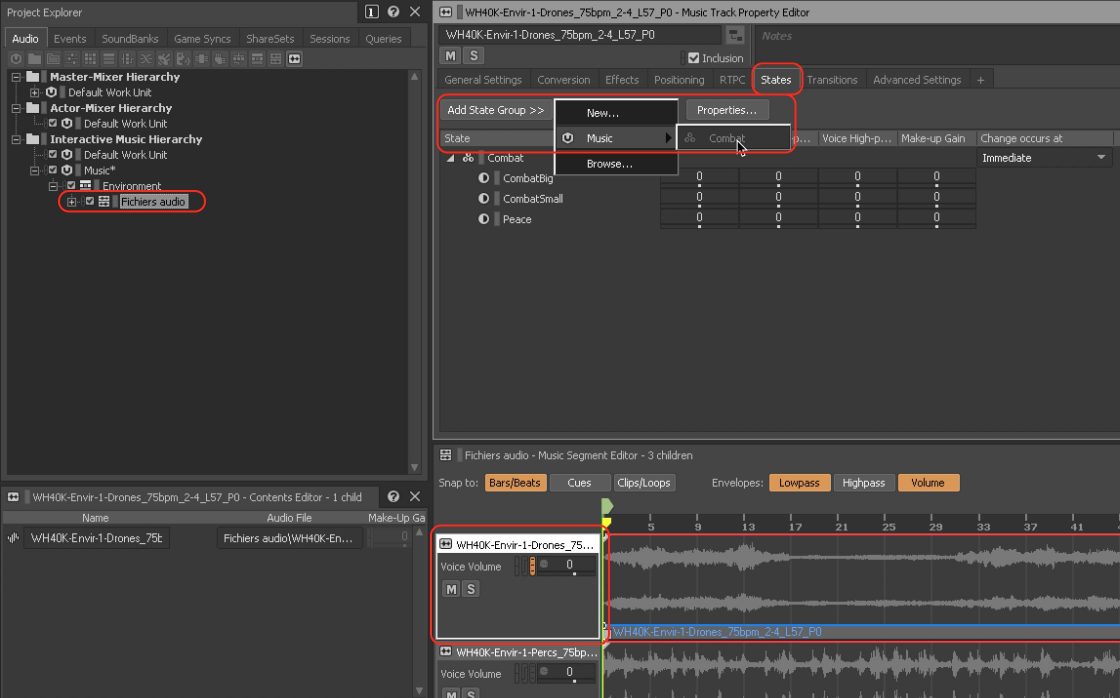
- Select the Music Segment.
- In the Music Segment Editor, select the Music Track corresponding to the ambient music intended to play at all times.
- In the Music Track Property Editor, select the States tab.
- Click the Add State Group button, then select the Work Unit you created, and choose the Combat Group State.
- Leave the settings at their defaults.
7 – Adjust the options for the small battle Music Track
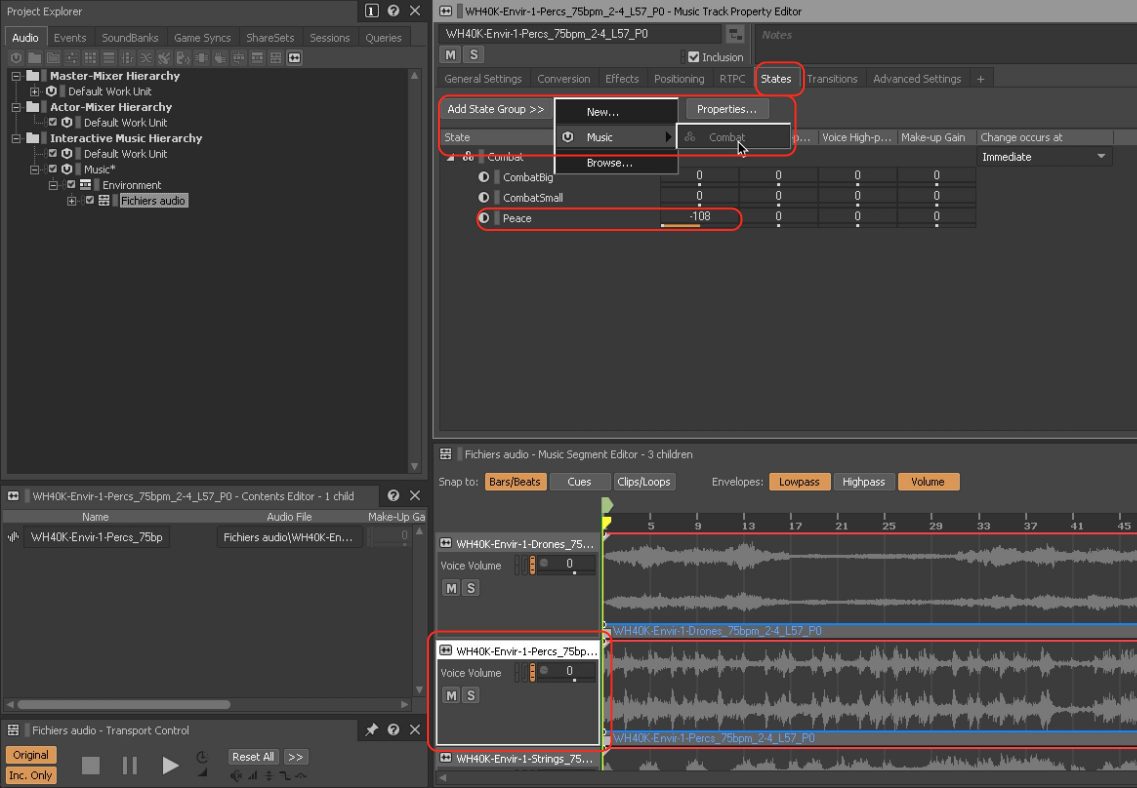
- In the Music Segment Editor, select the Music Track corresponding to the music intended to play during all battles.
- In the Music Track Property Editor, select the States tab.
- Click the Add State Group button, then select the Work Unit you created, and choose the Combat Group State.
- Adjust the settings so that this Music Track plays only when the CombatSmall and CombatBig States are active:
- Adjust the Voice Volume of the Peace State to -108.
8 – Adjust the options for the big battle Music Track
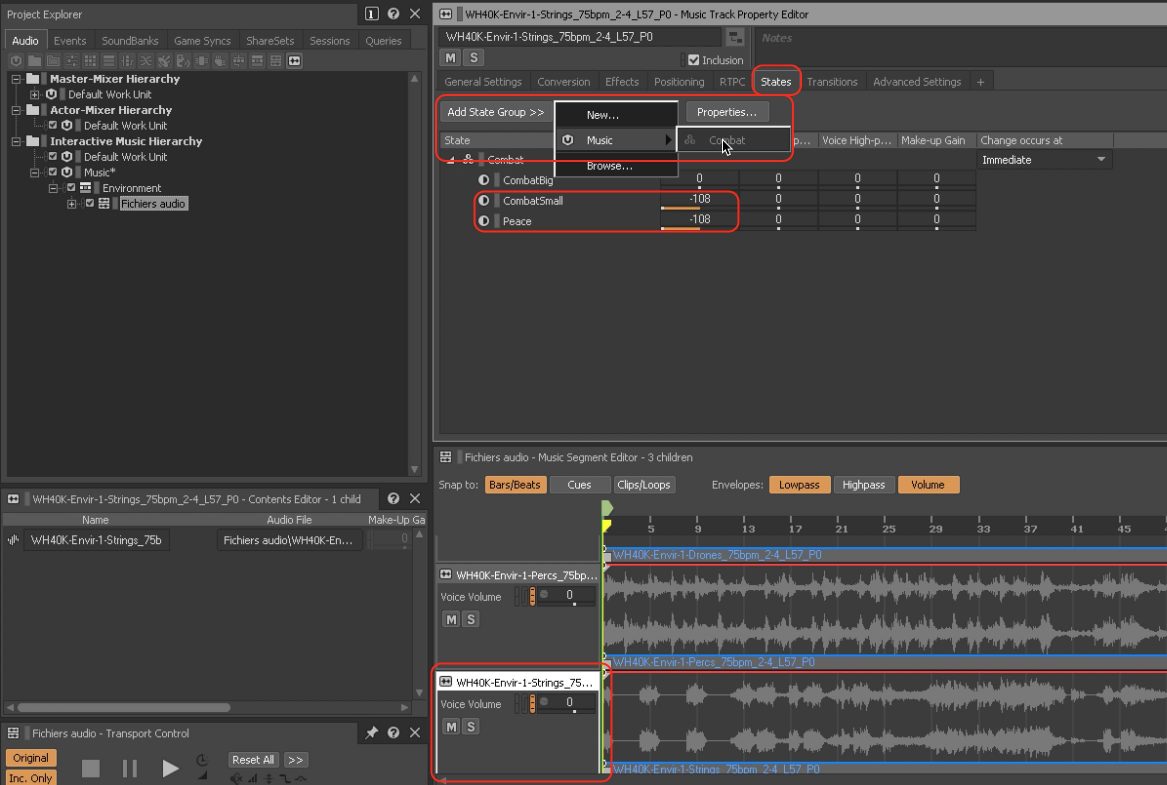
- In the Music Segment Editor, select the Music Track corresponding to the music intended to play during big battles.
- In the Music Track Property Editor, select the States tab.
- Click the Add State Group button, then select the Work Unit you created, and choose the Combat Group State.
- Adjust the settings so that this Music Track plays only when the CombatBig State is active:
- Adjust the Voice Volume of the Peace State to -108.
- Adjust the Voice Volume of the CombatSmall State to -108.
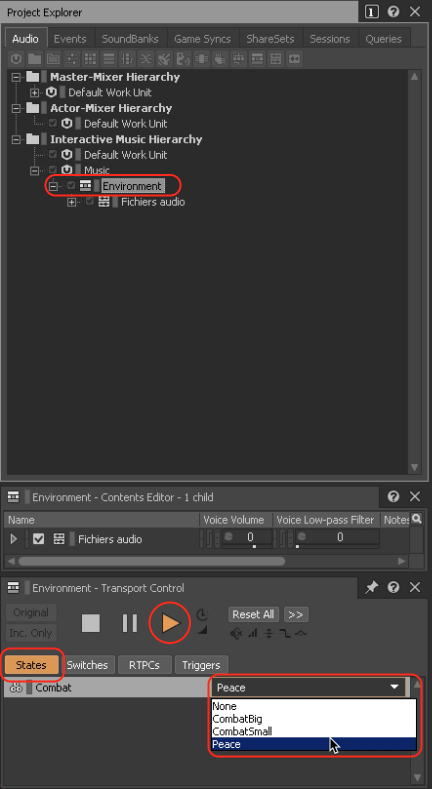
9 – Test the interaction
- In the Project Explorer, select the Music Playlist Container.
- In the Transport Control, ensure the States button is activated.
- In the menu associated with the Combat State, choose the desired State, e.g., “Peace”.
- Click Play, then change the State while the music is playing by selecting different States in the Transport Control menu, e.g., “CombatSmall” or “CombatBig”.
10 – Adjust the State Group options
- In the Project Explorer, select the Game Syncs tab.
- Select the Combat State Group.
- In the State Group Property Editor, adjust the Default transition time as needed.
- If necessary, create Custom Transition Times by clicking Insert, then adjusting the corresponding settings.